
User-Centred Design and Universal Design
User-Centred Design (UCD) puts the needs, preferences, and limitations of end users at the centre of every design decision.
Developers distinguish between two related ideas:
- User Interface (UI): The visual and interactive elements a person touches, clicks, or views (buttons, menus, text fields, and colour schemes).
- User Experience (UX): How the user feels while interacting with the software, including its speed, ease of navigation, clarity, and convenience.
The 7 Principles of Universal Design
Universal Design is the design of software and environments so that they can be accessed, understood, and used by all people, regardless of age, size, ability, or disability. The seven principles were developed at North Carolina State University and are promoted in Ireland by the Centre for Excellence in Universal Design (CEUD):
| Principle | Software Meaning | Digital Example |
|---|---|---|
| 1. Equitable Use | The design is useful and accessible to people with diverse abilities. | Built-in screen reader support for visually impaired users. |
| 2. Flexibility in Use | Accommodates a wide range of individual preferences and abilities. | Offering multiple ways to complete a task: keyboard shortcuts, mouse clicks, or voice commands. |
| 3. Simple and Intuitive Use | Easy to understand regardless of user experience, language, or literacy level. | Using standard icons that require no explanation, such as a magnifying glass for search. |
| 4. Perceptible Information | Presents necessary information clearly using multiple sensory modes. | Video players that provide closed captions and subtitles alongside audio tracks. |
| 5. Tolerance for Error | Minimises hazards and the negative consequences of accidental actions. | Providing an "Undo Send" popup or asking for confirmation before permanently deleting a file. |
| 6. Low Physical Effort | Can be used comfortably and efficiently with minimum fatigue. | Auto-filling form fields and allowing full navigation using the Tab key. |
| 7. Size and Space for Approach and Use | Appropriate size and spacing for interaction and reach. | Designing large touch targets on mobile screens so users do not hit adjacent links by accident. |
Comparing Two User Interfaces
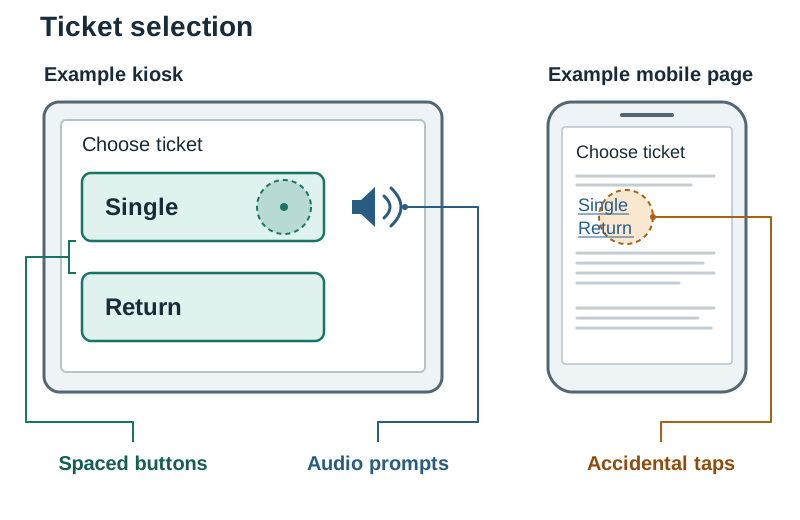
Consider two ticket-purchasing interfaces: a self-service train station kiosk with a large touchscreen versus a text-dense mobile website.
- The kiosk applies Size and Space for Approach and Use by featuring large, spaced buttons that are easy to press even for users with limited motor control, and Perceptible Information by pairing written text with audio prompts.
- The mobile website packs small text links close together, making accidental clicks common and violating Tolerance for Error.