

Every website on the World Wide Web relies on HTML and CSS functioning together under a client-server architecture. HTML (HyperText Markup Language) defines what each element is by supplying structural semantics, forms, and data tables. CSS (Cascading Style Sheets) dictates how those elements look by governing typography, colour schemes, spacing, and page layout. In Leaving Certificate Computer Science, HTML and CSS provide the user interface layer for Applied Learning Task 1 (ALT1), where interactive systems present database records to meet specified user requirements. Mastering this topic requires understanding the mechanics of markup and styling, the client-server request-response cycle, the CSS box model, usability factors, adaptive technologies, and the seven principles of universal design.
Web Architecture and Language Roles
Building web applications requires understanding how the different technologies interact across a network.
- HTML provides the structure and content.
- CSS controls visual presentation.
- Python and JavaScript execute algorithmic logic and handle dynamic behaviour.
- A relational database provides persistent data storage.
- HTTP acts as the communication protocol delivering resources between client and server.
The Internet versus the World Wide Web
The Internet is the physical global network infrastructure: millions of computers linked by copper cabling, fibre optics, satellites, and wireless links operating under the TCP/IP suite. Its physical hardware includes routers, switches, servers, modems, network interface cards, and client devices. The World Wide Web (WWW) is an information service operating on top of the Internet: a collection of multimedia documents and web resources identified by URLs and transferred via HTTP (HyperText Transfer Protocol) or encrypted HTTPS.
The Client-Server Request-Response Cycle
When a user enters a URL such as https://gaafixtures.ie/index.html:
- The browser queries a DNS (Domain Name System) server to resolve the domain name into an IP address.
- The browser initiates a connection and transmits an HTTP GET request for
index.htmlto the web server at that address. - The server locates the file or runs a server-side program to build it, returning an HTTP response with a status code (such as
200 OKon success, or404 Not Foundif missing). - The browser reads the incoming HTML, constructs an internal representation known as the Document Object Model, issues subsequent requests for linked assets (
style.css, images), applies styling rules, and renders the visual interface.
Markup versus Programming Languages
Exam questions routinely test the fundamental distinction between language categories:
- HTML is a markup language: it annotates raw text with tags to establish structural hierarchy. It contains no variables, no loops, no conditional branches, and no arithmetic operations.
- CSS is a styling language: it applies presentation declarations to matching selectors. It executes no algorithms.
- JavaScript and Python are programming languages: they store state in variables, execute iterative loops, branch using conditional logic, and perform mathematical operations.
Establishing User Needs and Development Process
Before writing code for an interactive system, software developers must establish clear user requirements.
Eliciting User Needs
Developers employ four standard methods to gather requirements:
- Interviews: Structured discussions with clients or club administrators.
- Questionnaires: Surveys distributed to end users to collect statistical feedback.
- Observation: Watching how users currently perform a task.
- Document analysis: Examining existing paper forms, spreadsheets, or noticeboards.
Requirements are categorised into two distinct types:
- Functional requirements: Specific behaviours the software must perform (for example, "The system must allow supporters to filter fixtures by date and venue").
- Non-functional requirements: Quality criteria defining how the system behaves (for example, "Pages must load in under two seconds", "The interface must be readable on mobile screens", or "All components must navigate via keyboard").
Staged versus Iterative Development
A staged (waterfall) process moves linearly through distinct phases: investigate, plan, design, create, evaluate, and document. Each stage must be completed and signed off before the next starts. This offers predictable schedules and clear documentation, but unexpected requirement changes late in development are costly to rectify.
An iterative process breaks development into small, repeatable cycles. A basic working prototype is designed, coded, and evaluated immediately with real users. Feedback informs the next iteration. In an ALT1 project, iteration 1 renders a hard-coded HTML table; iteration 2 connects the server script to the database; iteration 3 adds an interactive search form; and iteration 4 integrates CSS layouts and accessibility refinements.
HTML Structure, Semantic Elements, and Tables
An HTML document uses nested elements to form a tree structure. Most elements consist of an opening tag, content, and a closing tag. A few elements enclose no content and have no closing tag; these are called empty (or void) elements, including <br>, <img>, and <link>.
<!DOCTYPE html>
<html lang="en">
  <head>
    <meta charset="UTF-8">
    <meta name="viewport" content="width=device-width, initial-scale=1.0">
    <title>GAA Fixtures Portal</title>
    <link rel="stylesheet" href="style.css">
  </head>
  <body>
    <h1>Senior Championship Fixtures</h1>
    <p>Select a match to view ticket availability.</p>
  </body>
</html>
The skeleton relies on critical structural elements:
<!DOCTYPE html>informs the browser to render using modern HTML5 standards.<html lang="en">defines the root element and sets the primary human language, allowing screen readers to pronounce words correctly.<meta charset="UTF-8">defines the character encoding so standard text, accented characters, and symbols render reliably.- The
<meta name="viewport">element ensures mobile responsiveness by matching screen width rather than rendering a scaled-down desktop canvas. <head>encloses document metadata, page titles, and asset links that do not render on the main canvas.<body>encloses all visible user interface components.
Semantic HTML Elements
Using semantic HTML means choosing tags based on real-world meaning rather than default appearance:
| Tag | Semantic Role |
|---|---|
<h1> to <h6> | Headings indicating structural hierarchy; <h1> represents the page's primary subject |
<p> | Paragraph blocks of continuous text |
<ul> / <ol> with <li> | Unordered (bulleted) and ordered (numbered) lists of list items |
<header>, <nav>, <main>, <footer> | Landmark layout regions that enable assistive tools to navigate page sections |
<div> | Generic container without semantic meaning, used for CSS layout and grouping |
<a> | Hyperlinks directing users to resources, requiring an href attribute |
<img> | Embeds graphics, requiring a src file path and an accessible alt text attribute |
Data Tables
In ALT1, database records must be presented systematically. The <table> element provides this tabular structure:
<table>
  <caption>Upcoming Club Fixtures</caption>
  <tr>
    <th scope="col">Team</th>
    <th scope="col">Venue</th>
    <th scope="col">Throw-in</th>
  </tr>
  <tr>
    <td>Galway</td>
    <td>Pearse Stadium</td>
    <td>14:00</td>
  </tr>
</table>
The <caption> supplies an accessible title. The <tr> tag defines a table row. The <th> tag marks a cell as a header, instructing screen readers that it labels an entire column or row (browsers also render it bold and centred by default). Using scope="col" reinforces this relationship for non-visual users. The <td> tag encloses ordinary data cells.
Input Forms, HTTP Methods, and Database Rendering
Interactive websites require mechanisms to gather user input and transmit it to a backend server.
HTML Form Architecture
The <form> element wraps interactive controls. Its two primary attributes govern transmission:
action: The destination URL or server route receiving the data.method: The HTTP transfer mechanism (getorpost).
<form action="/search" method="get">
  <label for="club-input">Enter Club Name:</label>
  <input type="text" id="club-input" name="club" required>
  <button type="submit">Search Records</button>
</form>
The <label> element pairs explicitly with the <input> using the for and id attributes. This allows screen readers to announce field instructions and expands the clickable target area to include the label text.
Native input validation types help reduce user error: type="text", type="number", type="date", type="email", and type="password". Adding the required attribute stops form submission if a field is empty.
GET versus POST
Choosing an HTTP request method depends on the nature of the data:
method="get": Appends form data directly to the URL as a query string (for example,/search?club=Galway). It is visible in the browser address bar, can be bookmarked, has length restrictions, and should only be used for safe operations like searches.method="post": Transmits form data inside the body of the HTTP request. Data is hidden from the URL bar, has no strict length limits, and must be used for sensitive actions like account passwords or database modifications.
From Database Query to Rendered Table
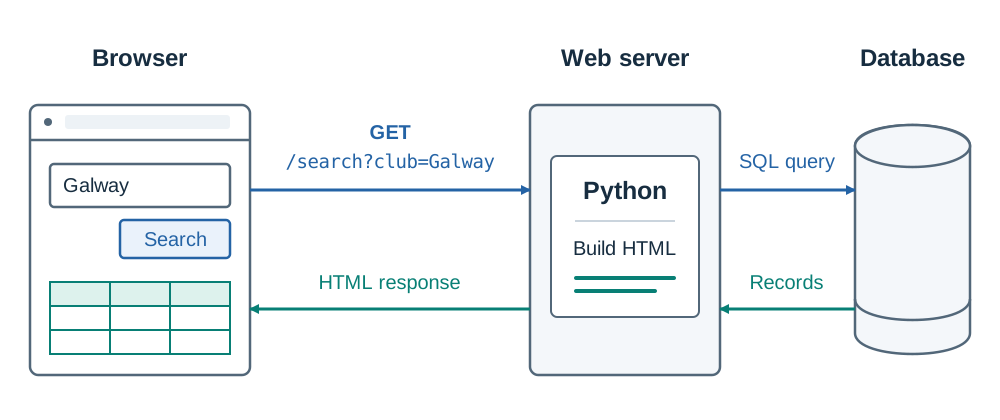
HTML cannot query a database directly because it lacks programmatic logic. A server-side language such as Python coordinates between the database and the client browser:
- The user enters "Galway" and clicks submit, triggering an HTTP GET request to
/search?club=Galway. - The server script extracts the query parameter
club. - The script executes a parameterised SQL query against the database.
- The script iterates through returned database records, assembling HTML table rows dynamically.
- The complete HTML text is returned in an HTTP response for the browser to render.
# Server-side data formatting in Python
cursor.execute("SELECT team, venue, throw_in FROM fixtures WHERE club = ?", (club,))
rows = cursor.fetchall()

html = "<table><tr><th>Team</th><th>Venue</th><th>Throw-in</th></tr>"
for team, venue, throw_in in rows:
    html += f"<tr><td>{team}</td><td>{venue}</td><td>{throw_in}</td></tr>"
html += "</table>"
If the query returns two records, the loop executes twice, injecting two <tr> blocks between the table tags.
CSS Selectors, Cascade Rules, and Specificity
CSS manages visual styling by targeting elements and applying declaration blocks.
Three Ways to Apply CSS
Styles can be attached to HTML documents using three methods:
- Inline style: Written directly inside an HTML tag using a
styleattribute (for example,<p style="color: red;">Warning</p>). It affects only that individual element, has high specificity, and mixes presentation into markup, making maintenance difficult. - Internal (embedded) stylesheet: Enclosed within
<style>tags in the page<head>. It styles elements across a single document without requiring external files. - External stylesheet: Saved in a separate
.cssfile and imported using<link rel="stylesheet" href="style.css">inside the<head>. This is standard industry practice because a single stylesheet controls presentation across hundreds of individual web pages.
Selector Syntax and Spelling Rules
CSS property names and values strictly use American English spellings. Writing colour: red; or text-align: centre; causes the browser rendering engine to silently ignore that individual declaration while applying surrounding rules without displaying syntax errors.
Three foundational selectors govern targeting:
- Element selector: Targets every instance of an HTML tag (
p,h1,table). - Class selector: Prefixed with a full stop (
.card,.result). Classes can be applied to any number of elements across a page. - ID selector: Prefixed with a hash (
#header,#search-box). An ID must be unique to a single element within a document.
The Cascade and Specificity Resolution
When multiple rules target the same element, the browser resolves conflicts using the cascade:
- Non-clashing properties merge: If an element selector sets
font-size: 16px;and a class selector setscolor: green;, the rendered text displays both styles. - Specificity breaks property conflicts: When two rules declare competing values for the same property, the selector with higher specificity takes precedence. The hierarchy is:
- Source order resolves ties: When conflicting declarations possess identical specificity, the rule appearing latest in the stylesheet wins.
The CSS Box Model and Layout Calculations
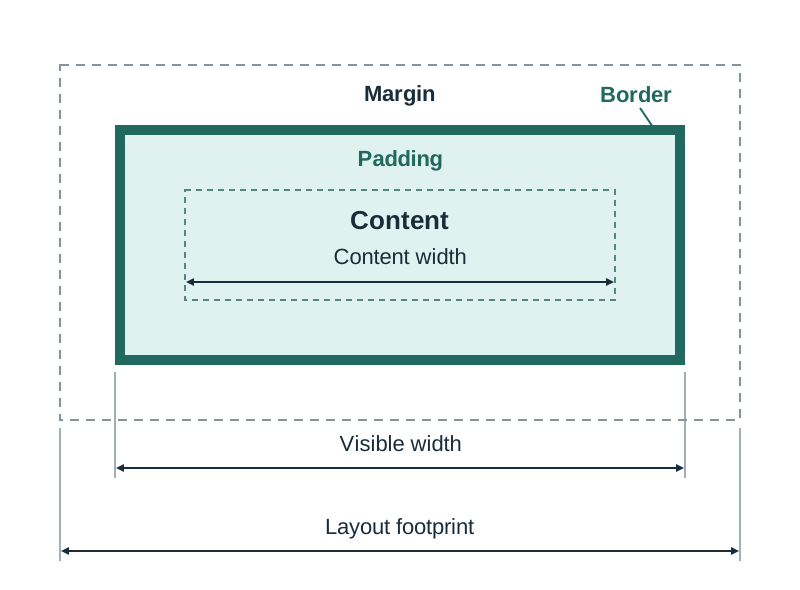
Every rendered HTML element sits inside a rectangular box defined by the CSS box model. Moving from the innermost section outward, the model comprises four concentric layers:
- Content: The area containing text, child tags, or media.
- Padding: Transparent spacing surrounding the content. Padding creates internal clearance and adopts the element background colour.
- Border: The structural stroke enclosing the padding, styled with width, pattern, and colour.
- Margin: Transparent clearance outside the border that separates the element from neighbours. Margins do not adopt the background colour.
Memory aid: padding is the stuffing inside the box; margin is the gap between one box and the next.
Calculating Horizontal Box Dimensions
Under default browser rendering (box-sizing: content-box), any declared CSS width applies exclusively to the inner content area. Added padding and borders expand the visible box:
If an element has content width , padding , border , and margin :
When developers declare box-sizing: border-box;, the stated defines the complete visible width. The browser shrinks the inner content area to , keeping external margins outside.
Separation of Concerns and Stylesheet Architecture
Separating structural HTML from presentation CSS demonstrates the software engineering principle of separation of concerns. Housing style rules in an external .css file provides three key advantages:
- Maintainability: Changing a single CSS declaration instantly updates the appearance of hundreds of linked pages across an entire site without modifying individual HTML files.
- Consistency: Every page linked to the stylesheet shares uniform typography, colour themes, and component margins, creating a unified user experience.
- Cleaner code: Keeping styling rules out of HTML files keeps the markup focused on semantic structure, making documents shorter, easier to read, and simpler to debug within development teams.
Designing for All Users: UI, Usability, Universal Design, and Adaptive Technology
A user interface (UI) is the visual and interactive touchpoint through which a human operates software: the screens, buttons, input fields, navigation menus, and feedback dialogues. Its purpose is to abstract away backend database and logic complexity, letting people complete tasks easily.
User experience (UX) encompasses the broader feeling and satisfaction a person experiences while using a system: whether it felt efficient, transparent, accessible, and dependable.
Five Usability Factors
Usability measures how easily an interface can be operated. The five standard factors are:
- Learnability: How easily first-time users can navigate and achieve basic objectives without formal instruction (for example, clear labels on search inputs).
- Efficiency: How quickly experienced users can complete recurring tasks (for example, persistent navigation menus rather than forcing users back to home pages).
- Memorability: How effortlessly returning users re-establish proficiency after an absence (for example, standard layout conventions placed predictably).
- Error rate and recovery: How frequently users make mistakes, how serious those mistakes are, and how easily users can recover (for example, descriptive form validation messages like "Please enter a date in the format DD/MM/YYYY" rather than a generic "Error").
- Satisfaction: How pleasant and comfortable the system is to use (for example, clean visual layouts with comfortable typography and clear contrast).
Comparing Two User Interfaces
Exam questions often require comparing two interfaces and identifying specific design decisions that shape user experience:
| Design decision | Site A | Site B | Effect on user experience |
|---|---|---|---|
| Navigation | Persistent top navigation bar across all pages | Different menu links on each subpage | Site A improves memorability; Site B forces users to relearn navigation |
| Data presentation | Structured <table> with distinct header cells | Unformatted blocks of running text | Site A allows rapid scanning of columns; Site B slows data comprehension |
| Colour coding | Status indicated by text label ("Sold Out") plus red styling | Status indicated solely by red colour | Site A ensures perceptible information for colour-blind users; Site B fails accessibility |
| Form error feedback | Descriptive prompt: "Date must be in the future" | Generic alert: "Invalid input" | Site A promotes rapid error recovery; Site B causes user frustration |
| Touch targets | Buttons with 14px padding | Small inline hyperlinks | Site A supports low physical effort on mobile screens; Site B leads to accidental clicks |
Adaptive Technology
Adaptive technology (assistive technology) refers to hardware and software tools that enable individuals with disabilities to access computer systems:
- Screen readers: Software that translates visual screen elements into spoken synthesised speech or refreshable Braille. Screen readers require descriptive
altattributes on images, ordered headings (<h1>-<h6>), and explicit<label for>bindings on form inputs. - Screen magnifiers: Software that enlarges page sections, requiring flexible responsive layouts that do not break when zoomed.
- Speech recognition software: Tools allowing hands-free system navigation via voice commands.
- Refreshable Braille displays: Mechanical devices rendering text characters as raised pin patterns, requiring real text rather than text embedded inside graphics.
- Switch access and eye-tracking systems: Hardware interfaces enabling individuals with limited motor control to select interface elements, demanding clear keyboard focus states (Tab key support) and large hit targets.
Adaptive technology fosters personal independence, inclusion, and employment access for users with disabilities.
The 7 Principles of Universal Design
Promoted in Ireland by the National Disability Authority's Centre for Excellence in Universal Design, the seven principles guide accessible digital system design:
- Equitable Use: The design is useful to people with diverse abilities. Web implementation: providing alternative text for graphics so screen-reader users obtain identical information.
- Flexibility in Use: The design accommodates varying preferences and abilities. Web implementation: supporting complete keyboard navigation alongside mouse and touch inputs.
- Simple and Intuitive Use: Operation is straightforward, eliminating unnecessary complexity. Web implementation: predictable navigation structures and intuitive form layouts.
- Perceptible Information: Information is communicated effectively across different sensory modalities. Web implementation: strong contrast ratios between text and background, never relying on colour alone to convey meaning.
- Tolerance for Error: Hazards and unintended actions are minimised. Web implementation: form validation providing clear corrective feedback before submission.
- Low Physical Effort: The design minimizes fatigue and repetitive actions. Web implementation: generous button padding and direct links to main content.
- Size and Space for Approach and Use: Appropriate dimensions are provided for manipulation. Web implementation: large touch targets that accommodate different hand sizes and mobility constraints on mobile devices.
Key terms
- HTML
- HyperText Markup Language; the declarative markup language used to structure web documents using tags.
- CSS
- Cascading Style Sheets; the styling language used to specify presentation, typography, colour schemes, and visual layout geometry.
- World Wide Web
- An information service of linked documents and resources operating over the Internet, identified by URLs and transferred using HTTP.
- Internet
- The global physical network infrastructure consisting of interconnected computer networks communicating via TCP/IP protocols.
- HTTP
- HyperText Transfer Protocol; the request-response communication protocol used to deliver web documents and resources across the World Wide Web.
- User Interface (UI)
- The visual and interactive components of a system, such as buttons, forms, and menus, through which a human interacts with software.
- User Experience (UX)
- The overall experience, ease of use, satisfaction, and perception a person encounters when interacting with a digital system.
- Universal Design
- The design of environments and digital products to be usable by all people, to the greatest extent possible, without needing specialised adaptation.
- Adaptive Technology
- Hardware and software tools, such as screen readers and switch access devices, designed to increase accessibility for persons with disabilities.
- Usability
- The measure of how easily, efficiently, and satisfactorily a user can interact with an interface to accomplish defined goals.
- Semantic HTML
- Writing HTML markup that selects tags according to their structural meaning and content role rather than their visual presentation.
- Separation of Concerns
- A software architecture design principle that divides a system into distinct layers, isolating structural markup (HTML) from visual presentation (CSS).
- CSS Box Model
- The geometric layout model defining how elements render as rectangular boxes composed of content, padding, border, and margin layers.
- Cascade
- The ruleset used by web browsers to resolve styling conflicts, prioritising specificity, source order, and declaration origin.
- Padding
- The transparent internal clearance area between an element's inner content and its outer border, which adopts the element's background colour.
- Margin
- The transparent external clearance area outside an element's border that creates spacing between adjacent layout elements.
Check yourself
What is the primary architectural difference between the Internet and the World Wide Web?
The Internet is the global physical infrastructure of interconnected computer networks using TCP/IP, whereas the World Wide Web is an information service of linked multimedia documents transferred over the Internet using HTTP.
Name the four concentric layers of the CSS box model, ordered from the inside out.
Content, padding, border, and margin.
An element has a content width of 300px, horizontal padding of 20px on each side, a 2px border on each side, and a margin of 15px. What is its visible width?
344px (300px content + 40px total padding + 4px total border). Margin is external clearance and does not form part of the visible width.
A sports club requires a form to filter fixtures by county, and the submitted parameter must not appear in the browser address bar. Name the HTML element, the destination attribute, and the method value required.
The <form> element, the action attribute, and method="post".
State two concrete development advantages of storing styles in an external CSS file rather than using inline style attributes.
Modifying a single external CSS file updates presentation across an entire website instantly, and it preserves separation of concerns by keeping presentation out of HTML content files.
Which of the 7 Principles of Universal Design is supported by pairing a <label for="club-id"> with an <input id="club-id">?
Mainly equitable use, because screen-reader users receive identical guidance to sighted users; it also supports perceptible information (field purpose is clear) and low physical effort (the larger text label is clickable).